How to Turn Recipe Screenshots into Organized Recipe Cards
The way to turn recipe screenshots into organized recipe cards is to run them through an app that can read the image and rebuild the recipe as structured text. Import any screenshot or photo into Cookit and it extracts the ingredients, quantities, and steps into a clean, editable, searchable recipe card — no retyping.
The camera-roll recipe graveyard
Screenshots are the fastest save button there is, which is exactly why your camera roll is full of them: a carbonara from a group chat, a story that disappeared an hour later, a cookbook page from a friend's kitchen, a comment thread with the "real" measurements. Six months later they're wedged between vacation photos and parking receipts, unsearchable and unsorted. You know you saved that cookie recipe; you just can't prove it.
The screenshot did its job — it captured the recipe. The problem is that a picture of a recipe isn't a recipe you can use: you can't search it by ingredient, scale the servings, or send its items to a shopping list.
What "organized" should actually mean
A screenshot becomes genuinely useful once it's converted into:
- A structured ingredient list with quantities you can check off and scale.
- Numbered steps instead of a paragraph squeezed into a 9:16 frame.
- A searchable title so "that pasta thing from March" is findable by name or ingredient.
- An editable card you can correct, annotate, and mark as a favorite.
The fastest way: scan the screenshot with Cookit on iPhone
- Open Cookit and start a new import from a photo or screenshot.
- Pick the recipe screenshot from your camera roll — a photo of a cookbook page or a handwritten card works too.
- Cookit reads the image and rebuilds it as a recipe card with ingredients, quantities, and step-by-step instructions.
- Fix anything the source image left unclear, then save it to your library.
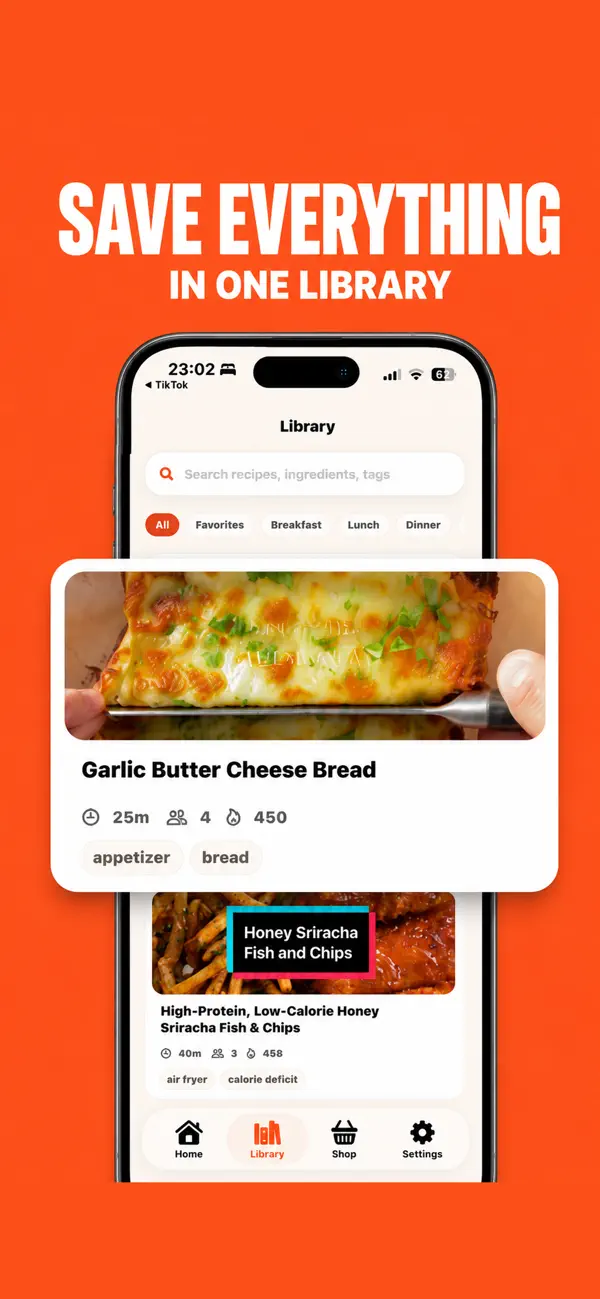
Repeat for the rest of the backlog and the payoff compounds: every rescued screenshot joins the same library as your TikTok saves, Instagram Reels, and pasted notes — organized by favorites and recent activity, and ready to combine into one grocery list.
Beyond screenshots: cookbook pages and handwritten cards
The same scan works for paper. A photo of a cookbook page, a magazine clipping, or your grandmother's handwritten recipe card goes through the identical flow: photograph it, import it, and Cookit rebuilds it as a structured card. For family recipes this is quietly the most valuable use of the feature — the original card stays safe in a drawer while the working copy lives on your phone, scaled to modern servings and annotated with what you've learned making it. Recipes dictated over the phone and typed into a note convert the same way: paste the text instead of importing an image.
Once converted, screenshots stop being second-class recipes. The carbonara from the group chat sits next to your TikTok saves and generated recipes, shows up in search, counts toward the week's shopping list, and can be edited like anything else. The screenshot habit doesn't need to change — it's a good habit. It just needs a destination smarter than the camera roll.

A few honest caveats
Recognition quality depends on the image: crisp screenshots convert nearly perfectly, while blurry photos of handwriting may need a correction or two — the card is fully editable for exactly that reason. Cookit is free to download with a limited number of imports; unlimited imports and photo scans are part of the Cookit Pro subscription.
And keep taking screenshots — genuinely. It's still the fastest capture on a phone, and it works in places share sheets can't reach: disappearing stories, group-chat photos, comment threads, paywalled pages you're allowed to read but not link. The fix was never to stop screenshotting recipes. It was to give those screenshots somewhere to become recipes again.